Events Setup & Ticket Sales Guide
8thAve.ca
This guide walks you through setting up an event on 8thAve.ca, from choosing a package to selling tickets and managing refunds. Please review each section carefully to ensure your event listing complies with platform requirements and provides a clear experience for attendees.
1. Importing Event Details (Optional)
You may begin by importing event details from supported social platforms.
- Paste a Facebook Page or TripAdvisor URL into the Import Details from Social URLs field.
- Click Import Details to automatically populate available information such as the event title, description, and images.
- Review and edit imported content to ensure accuracy before submitting your listing.
This step is optional and intended to save time.
2. Selecting an Event Package
Choose the event package that best fits your event’s scope and visibility needs.
Essential Event Feature
Designed for single, clearly defined events such as pop-ups, intimate gatherings, and limited engagements.
- Single-date events only
- Up to 3 images
- 1 category, 1 tag
- 500-character description
- Business hours, contact details, website link, and registration fee field
- No integrated ticket sales
- $39.00 / month
Premium Event Showcase
Ideal for events that require structured scheduling and integrated ticketing.
Includes everything in Essential, plus:
- Recurring event scheduling
- Access to the Tickets Management System
- QR-enabled tickets with real-time validation
- Live tracking of ticket sales, usage, and reporting
- Up to 6 images
- 2 categories, 2 tags
- 1,500-character description
- $69.00 / month
Elite Event Experience
Designed for high-profile or flagship events requiring elevated visibility and advanced controls.
Includes everything in Premium, plus:
- Guaranteed homepage placement within Signature Events
- Access to the Prime Internal Hero Banner
- Video integration
- Live tracking of ticket sales, usage, and reporting
- Up to 12 images
- 4 categories, 4 tags
- 3,000-character immersive description
- $99.00 / month
Eligibility & Coverage
8thAve.ca is a curated platform focused on the Stephen Avenue Walk (8 Avenue SW) corridor and the surrounding Downtown Calgary area. Events must take place within, or clearly serve, this corridor and audience.
Listings are published immediately and may be reviewed after publication for relevance and eligibility. Listings that do not meet platform standards may be updated, unpublished, or removed.
3. Event Scheduling & Recurrence
When setting your event schedule:
- Choose whether the event is single-date or recurring
- Select start date, duration, and recurrence pattern
- Define when recurring events stop (by number of occurrences or end date)
- Set start and end times or mark the event as All Day
Ensure dates and recurrence accurately reflect your event, as ticket sales and attendee expectations depend on this information.
4. Event Details & Location
Event Title & Description
- Use a clear, descriptive title
- Describe what attendees can expect, key highlights, and any requirements
- If registration or payment is handled externally, include clear instructions at the end of the description
Categories
- Select the most relevant category for discoverability
- The default category affects the event URL and map marker
Address & Location
- Country, region, and city fields are locked to ensure corridor consistency
- Enter the street address and postal code
- Use Set Address on Map to confirm precise location
- Latitude and longitude are automatically populated for accuracy
5. Images & Contact Information
Images
- Upload high-quality images that represent your event
- Drag and drop to arrange display order
- Image limits depend on your selected package
Contact & Social Links
You may include:
- Phone number
- Email address
- Website
- Facebook, Instagram, TikTok, and X (Twitter) links
Providing social links is recommended to help attendees learn more and engage with your brand.
6. Business Hours & Registration Fees
- Business hours are optional for events
- All listings use Edmonton (UTC-7) as the system time zone
- If not using the Tickets Management System, you may enter an external registration fee
- Leave the registration fee field blank if selling tickets through the platform
7. Ticket Sales Setup & Acknowledgements
Before enabling ticket sales, you must review and accept the acknowledgements below. These ensure clarity around pricing, commissions, refunds, and payouts.
Sell Tickets
Enable this option only if you plan to sell tickets through the 8thAve.ca Tickets Management System.
Events with ticket prices set to $0 may be listed without selling tickets through the platform, with registration or payment handled externally.
Ticket Sales & Platform Commission Acknowledgement
By enabling ticket sales, you acknowledge that:
- A 12% platform commission applies to each ticket sold
- A minimum ticket price of $10 is required
- Ticket sales are subject to the platform’s ticketing and payout rules
- 8thAve.ca may review ticket pricing after publication and take corrective action if minimum pricing or configuration does not comply with platform requirements
Event Delivery, Refunds & Financial Responsibility
By proceeding, you acknowledge that:
- You are solely responsible for event delivery, scheduling, cancellations, and refund decisions
- Stripe processing fees are only incurred when a ticket is refunded
- Stripe fees (approximately 2.9% + $0.30 per refunded ticket) are non-refundable and are your responsibility
- Ticket payouts are managed in alignment with platform risk exposure and may be adjusted to account for refunds or disputes
- Remaining funds are released once refund risk has passed or the event has been delivered
- 8thAve.ca acts solely as a ticketing facilitation platform and is not a party to the transaction between you and attendees
Ticket Cancellation & Refund Policy
You must clearly explain:
- Whether tickets are refundable or non-refundable
- Refund deadlines, if applicable
- No-show rules
This policy is displayed to customers before purchase and must be honored.
Event Disruption Notice (Read before buying)
Use this field to inform visitors of any cancellation, postponement, or change affecting this event or specific event dates. Tickets are issued for a specific date and time, so clearly identify which date(s) are affected.
This notice is displayed before the Buy Ticket button. Event organizers are responsible for keeping this notice accurate and for handling any refunds or disputes, including non-refundable payment processing fees.
Listing Approval Agreement
You confirm that:
- Your event meets 8thAve.ca’s quality, accuracy, and eligibility standards
- The event is physically located within, or clearly serves, the Stephen Avenue corridor
- Listings may be reviewed, updated, unpublished, or removed after publication if requirements are not met
- Continued publication is not guaranteed
8. Using the Tickets Management System
Once ticket sales are enabled, you can manage tickets from your event dashboard.
Key Features
- Create and price tickets
- Monitor ticket sales in real time
- View attendee lists and sales reports
- Use QR-enabled tickets for check-in
- Validate tickets using a laptop camera or external scanner
Important Notes
- Ticket pricing is configured after the event is published
- All ticket sales trigger automated email notifications
- Refunds must be managed according to your stated policy
- Refund-related Stripe processing fees are deducted per refunded ticket
9. Final Review & Submission
Before submitting:
- Confirm all required fields are complete
- Review your ticket pricing and refund policy
- Ensure images and descriptions accurately represent your event
Click Preview Listing to review your event, then Submit Listing to publish.
Selling Tickets & Ticket Management Guide
The Tickets Management System on 8thAve.ca allows event organizers only to create, sell, manage, and validate tickets directly through their event listings. This feature is optional and available with Premium and Elite Event packages.
Ticket buyers and general visitors interact only with the Buy Tickets button on the event page. All ticket configuration, monitoring, and validation tools are restricted to the event organizer.
Organizer-Only Access
- The Ticket Management button is not visible to users or ticket buyers
- Only the event organizer (listing owner) can access ticket setup, sales, reports, and scanning tools
- Buyers see only the ticket purchase interface and receive QR-coded tickets after purchase
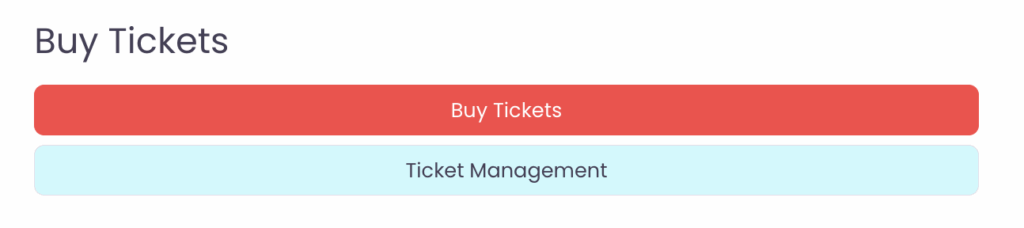
How Event Organizers Access Ticket Management
Once your event is published and Sell Tickets is enabled:
- Log in to your organizer account
- Open your event listing
- Select Ticket Management (organizer-only)
This opens the Manage Tickets dashboard in a secure modal window.
Ticket Management Dashboard Overview
The Ticket Management dashboard includes four main tabs:
- Types – Create and manage ticket types
- Sales – View individual ticket purchases
- Report – View summarized ticket sales and earnings
- Scanner – Validate tickets at the event using QR codes
Ticket Types (Creating & Managing Tickets)
Use the Types tab to create one or more ticket options for your event.
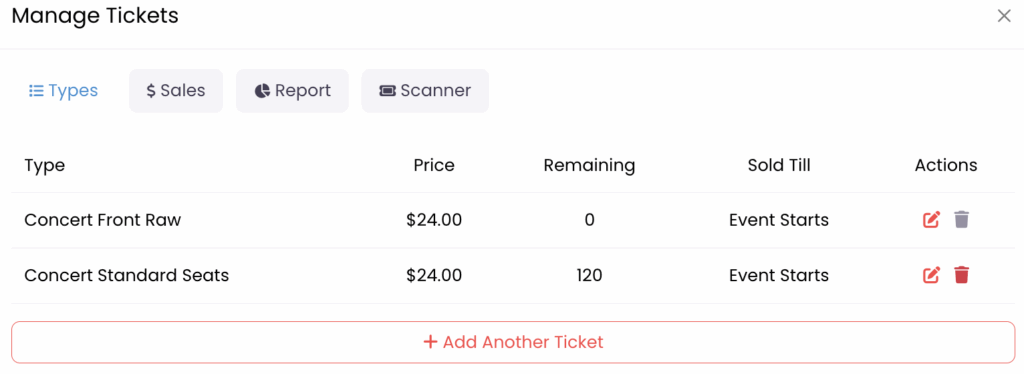
Each ticket type includes:
- Ticket Name (e.g., General Admission, Front Row, VIP)
- Ticket Price
- When selling tickets through the platform, a minimum ticket price of $10 is required
- Available Quantity
- Sales End Rule
- Sell tickets until the event starts, or
- Sell tickets until the event ends
- Optional setting to mark a ticket as selected by default
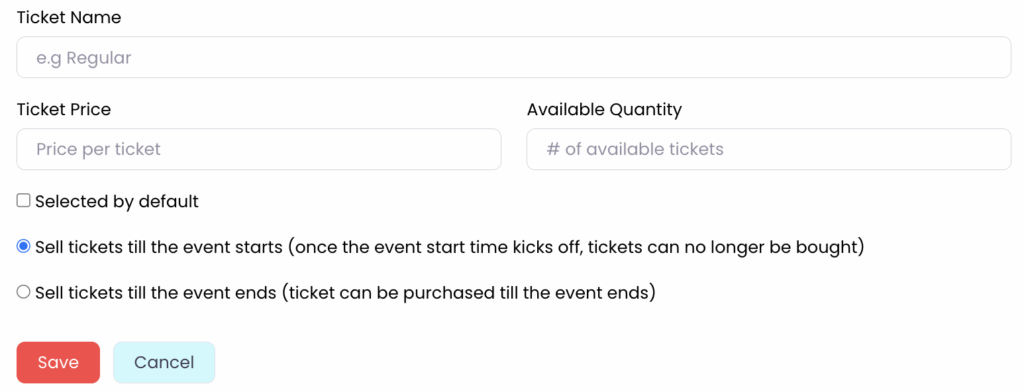
Organizers can:
- Add multiple ticket types
- Edit ticket details at any time
- Remove ticket types that have no sales
- Monitor remaining ticket quantities in real time
Once tickets are sold, changes should be made carefully to avoid customer confusion.
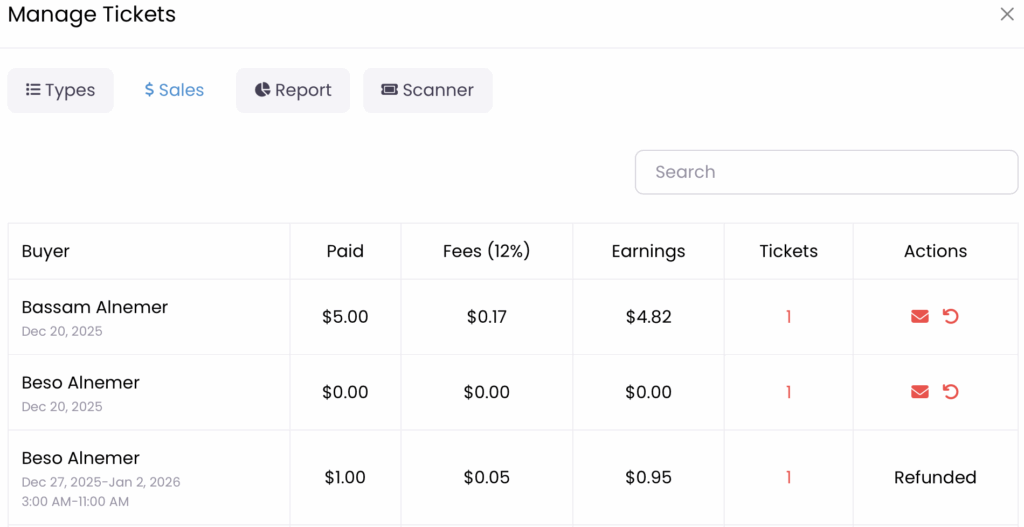
Sales Tab (Individual Ticket Purchases)
The Sales tab displays a detailed list of all ticket transactions, including:
- Buyer name
- Purchase date
- Amount paid
- Platform commission (12%)
- Organizer earnings
- Number of tickets purchased
- Ticket status (active or refunded)
This view helps organizers track purchases and identify refunded or zero-value tickets.
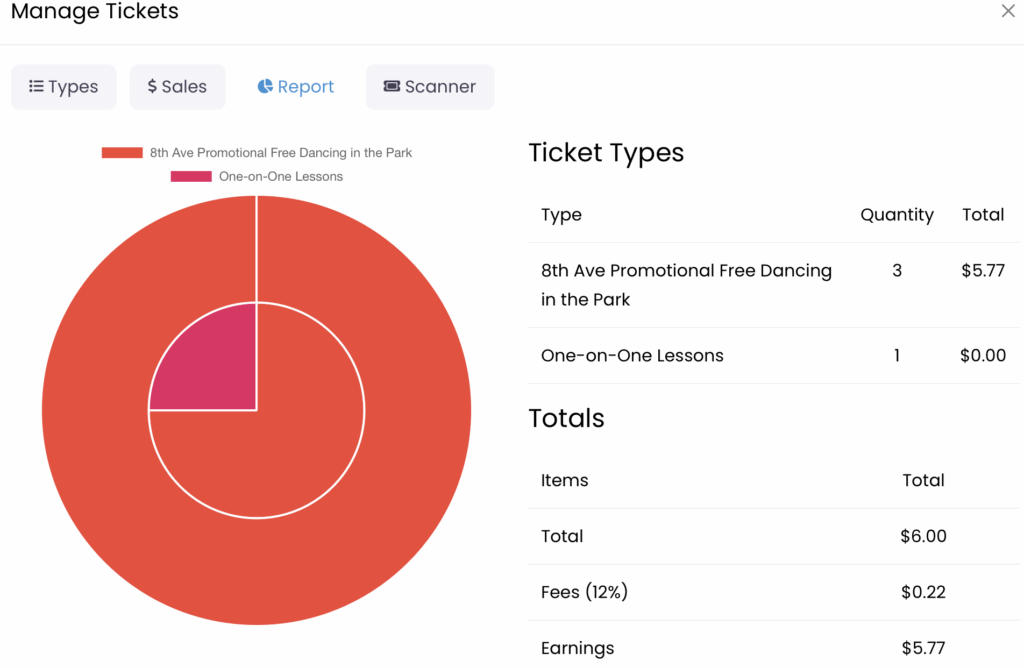
Report Tab (Sales Summary)
The Report tab provides a visual and numerical summary of ticket performance, including:
- Tickets sold by type
- Total gross sales
- Platform commission (12%)
- Net earnings
- Overall totals
This section is useful for revenue tracking, reconciliation, and post-event reporting.
Scanner Tab (Ticket Validation at the Event)
The Scanner tab is used to validate tickets at the event entrance.
Live Camera Scanning
- Click Request Camera Permissions
- Allow browser access to your camera
- Select an available camera
- Click Start Scanning
- Scan ticket QR codes directly from attendee devices or printed tickets
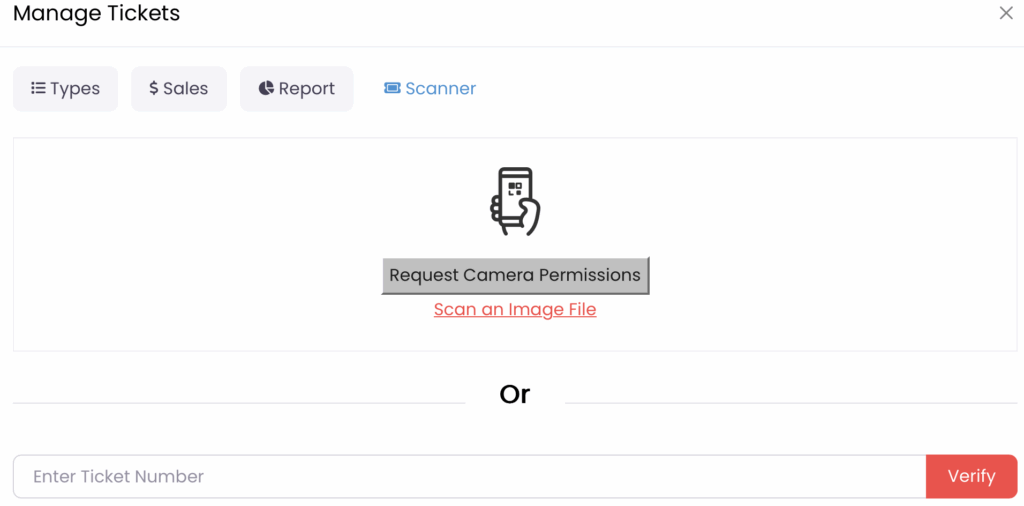
Image Upload Scanning
- Upload a screenshot or image of a ticket QR code
- Useful when live camera scanning is not available

Manual Verification
- Enter the ticket number manually
- Click Verify to confirm validity
Once a ticket is scanned:

- It is marked as used in real time
- It cannot be scanned again
- Duplicate entry is prevented
A laptop webcam or external camera works well for entry desks.
Financial & Operational Responsibilities
- Tickets are sold through 8thAve.ca only when Sell Tickets is enabled
- A 12% platform commission applies to each ticket sold
- Stripe processing fees apply only when a ticket is refunded, and those fees are the responsibility of the event organizer
- Ticket payouts are managed in alignment with platform risk exposure and refund windows
- Organizers are solely responsible for:
- Event delivery
- Scheduling and cancellations
- Refund decisions
- Customer communication
8thAve.ca acts solely as a ticketing facilitation platform and is not a party to the transaction between organizers and attendees.
Designing Ticket Sales for Events
There are two supported ways to design ticket sales for events. Each method offers a different level of control and flexibility when managing cancellations, rescheduling, and refunds.
Choose the method that best fits your event format and risk tolerance before publishing your event.
Method 1: Recurring Event with Shared Ticket Sales
This method uses the Recurring Event feature to schedule repeating events using a single ticket setup.
How it works
- The event is set as Recurring
- A single ticket configuration applies to the entire event series
- Tickets are issued for a specific date and time, but ticket quantities are managed at the event level
Best for
- Simple, consistent schedules (e.g., weekly classes)
- Events with low likelihood of cancellations
- Organizers who prefer minimal setup and management
Important considerations
- Individual dates within the series cannot be cancelled automatically
- Ticket sales remain enabled unless manually changed
- If a date is cancelled:
- A clear Event Notice (Read Before Buying) must be posted
- The organizer is responsible for handling refunds
- Non-refundable payment processing fees apply to refunds
Recommended practice
Use this method only when schedule changes are unlikely. Always post a clear disruption notice if a cancellation occurs.
Method 2: Date-Specific Tickets Without Recurring Events (Recommended for Paid Events)
This method disables recurring events and manages each event day as a separate ticket (service).
How it works
- Set Recurring Event to No
- Define an event date range covering all planned event dates
- In Manage Tickets, create:
- One ticket per event date
- Each ticket with its own date and ticket quantity
Example:
- Art Class Beginner – January 21 – (50 tickets) – $24.00
- Art Class Intermediate – January 22 – (40 tickets) – $29.00
- Art Class Advanced – January 23 – (35 tickets) – $34.00
Each ticket is tied to a specific date with independent availability.
Best for
- Paid events
- Multi-day or multi-session events
- Events where cancellations or rescheduling are possible
- Organizers who want maximum control over ticket availability and price variations
Key advantages
- Individual event dates can be managed independently
- If a date is cancelled, tickets for that date can be refunded (standard payment processing fees apply, typically a percentage of the ticket price plus a fixed fee per transaction), or
- Tickets may be honored for another date by agreement with the ticket holder, helping avoid refund processing fees
- Organizers can reduce ticket availability on the new date to prevent overbooking
Recommended practice
Use this method if you want flexibility to manage cancellations, reschedule attendees, or minimize refunds and processing fees.
Which Method Should I Choose?
| Scenario | Recommended Method |
|---|---|
| Simple recurring schedule | Method 1 |
| Paid multi-day event | Method 2 |
| High cancellation risk | Method 2 |
| Need per-date ticket limits | Method 2 |
| Minimal setup preferred | Method 1 |
Important Reminder
Regardless of the method used:
- Tickets are issued for a specific date and time
- Organizers are responsible for:
- Posting accurate event notices
- Communicating changes to ticket holders
- Managing refunds and disputes
- Absorbing non-refundable payment processing fees when refunds occur
Why This Matters
Choosing the right ticket design upfront reduces refunds (processing fees), avoids confusion, protects visitors, and gives organizers the appropriate level of control over their events.